 Ambitus
Notes
Notes is where your work lives: meeting notes, plans, quotes, anything longer than a line in a list. A note can hold formatted text, tick boxes and links, as well as photos, drawings, recordings, video and tables.
Your notes are ordinary files in a folder of your own. If that folder is in iCloud Drive, all your devices share it.
This chapter covers writing and organising. Four more chapters go further: Photos, Drawings, Recordings and Video, Tables, The Time Note and The Note as a Page.
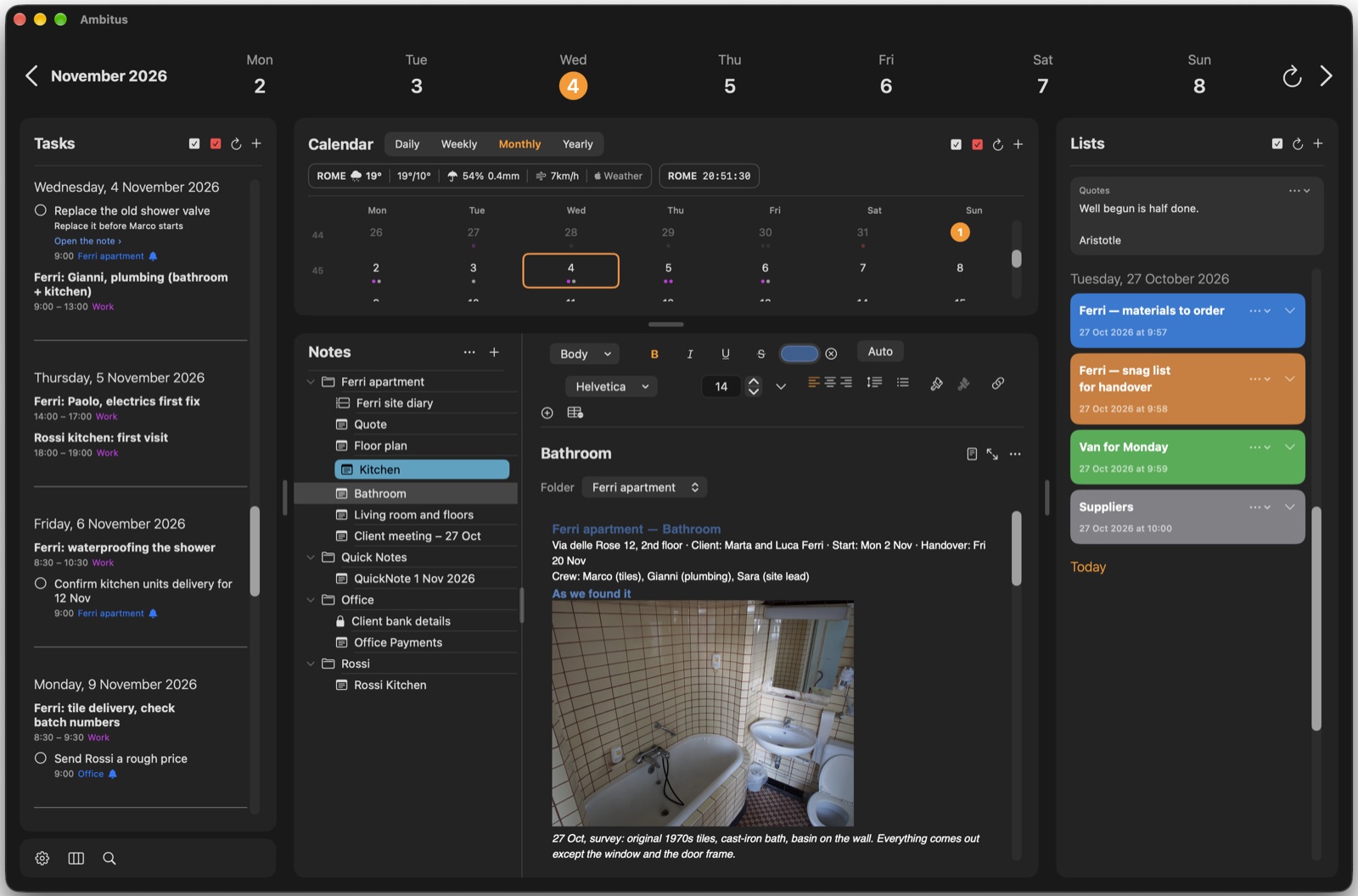
Where to find it
- Mac and iPad: Notes is in the middle of the window, under the Calendar. On an iPad in a narrow window, the parts become tabs along the bottom.
- iPhone: tap Notes in the bar at the bottom of the screen.
Folders and notes
Notes are kept in folders, and a folder can hold other folders. The arrow beside a folder opens and closes it. Each device remembers which folders it has open.
Tap or click a note to open it. On the iPhone the note fills the screen; to go back, swipe right on the tool bar.
Making a note
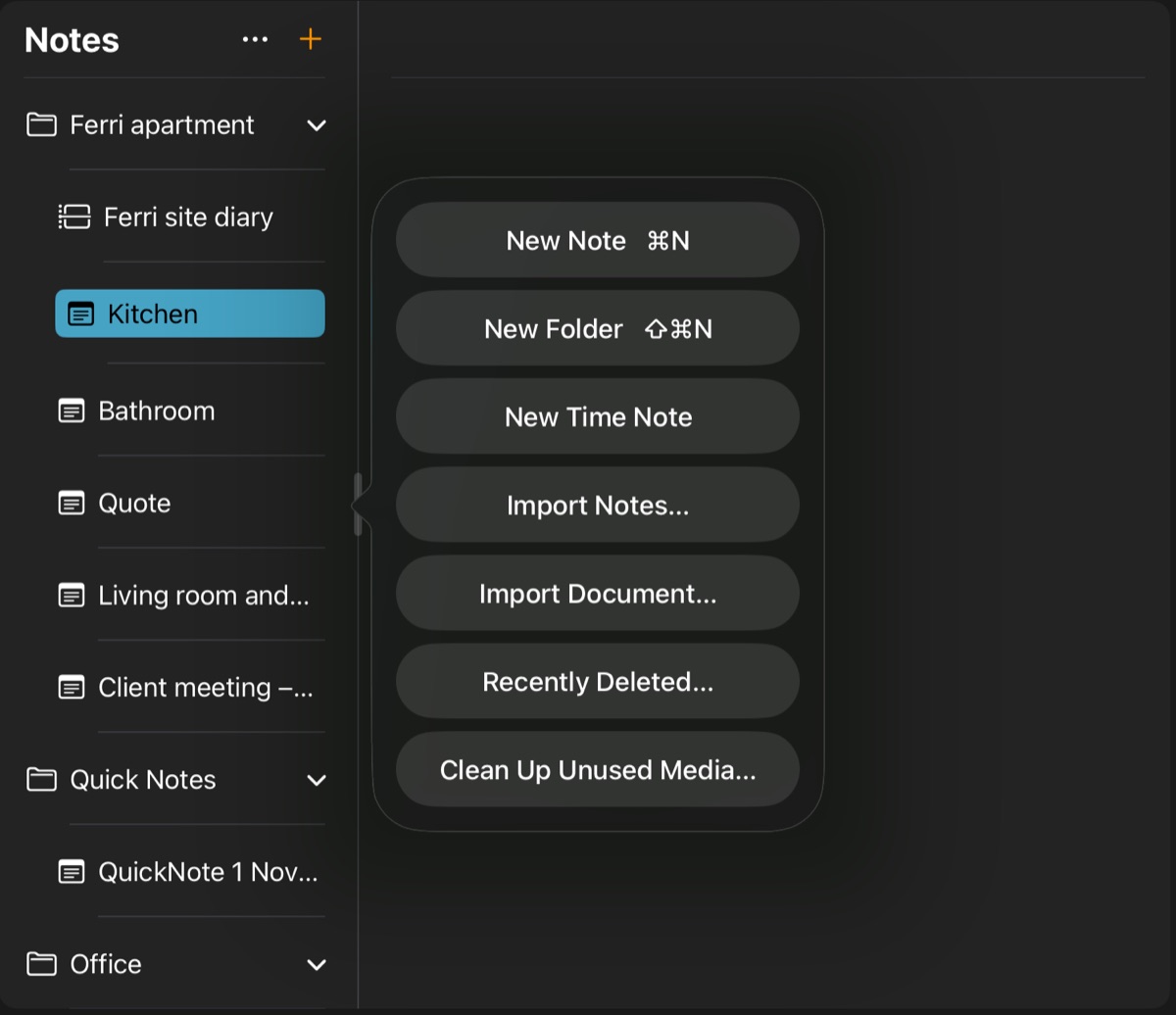
- Tap or click + at the top of Notes.
- Choose New Note. On a Mac or an iPad with a keyboard: ⌘N.
- The new note opens. Type its title, then its text.
The note goes into the folder you have selected. To put it in a particular folder, right-click the folder (Mac) or touch and hold it (iPad, iPhone) and choose New Note.
Making a folder
- Tap or click + at the top of Notes.
- Choose New Folder. On a Mac or an iPad with a keyboard: ⇧⌘N.
- Type a name and choose Save.
To make a folder inside another, right-click it or touch and hold it and choose New Subfolder. Two folders in the same place can't have the same name; Ambitus says so and asks for another.
Moving a note or folder
- A note: under its title, Folder shows where it is kept. Choose another folder there. None puts it at the top level.
- A folder: in its menu, choose Move to Folder, then a folder or Top Level.
Writing
A note has a title at the top, on a line of its own, and its text below. The title is the note's name in the list. A note with no title is called New Note.
There is no Save button. Ambitus saves by itself whenever you pause.
To rename a note, type over its title, or choose Rename… in its menu.
On the iPhone
Swipe down on the text to put the keyboard away. Swipe right on the tool bar to go back to the list.
Moving things in a note
- Mac: select some text, or press on a photo, drawing, recording, video or table, then drag it to another place in the note.
- iPhone and iPad: touch and hold selected text, or a photo, drawing, recording, video or table, then drag it to another place in the note.
An orange line shows where it will land. It moves, it isn't copied, and one Undo puts it back.
The tool bar above the text
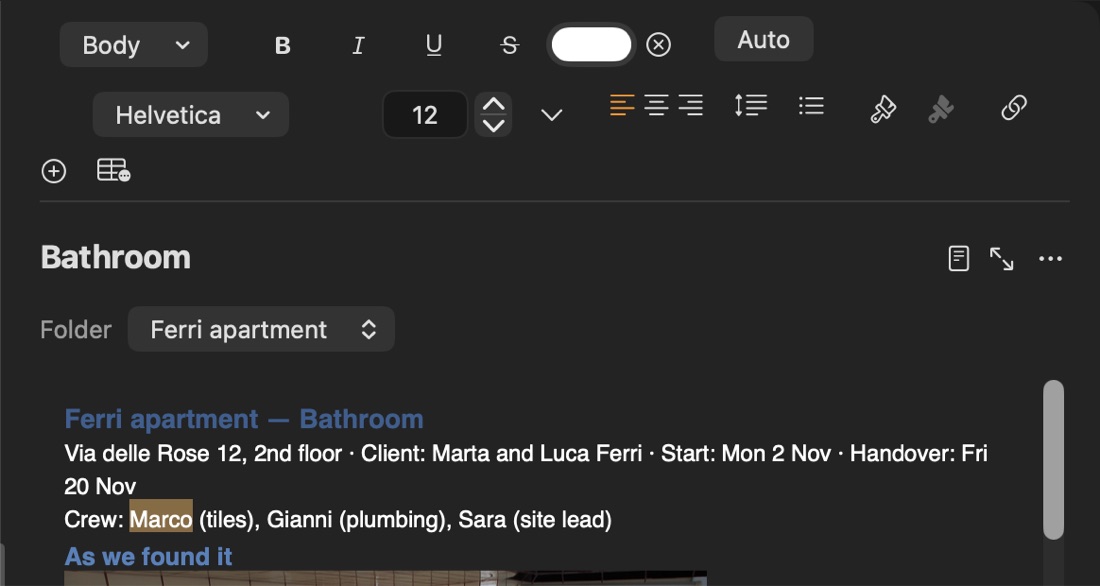
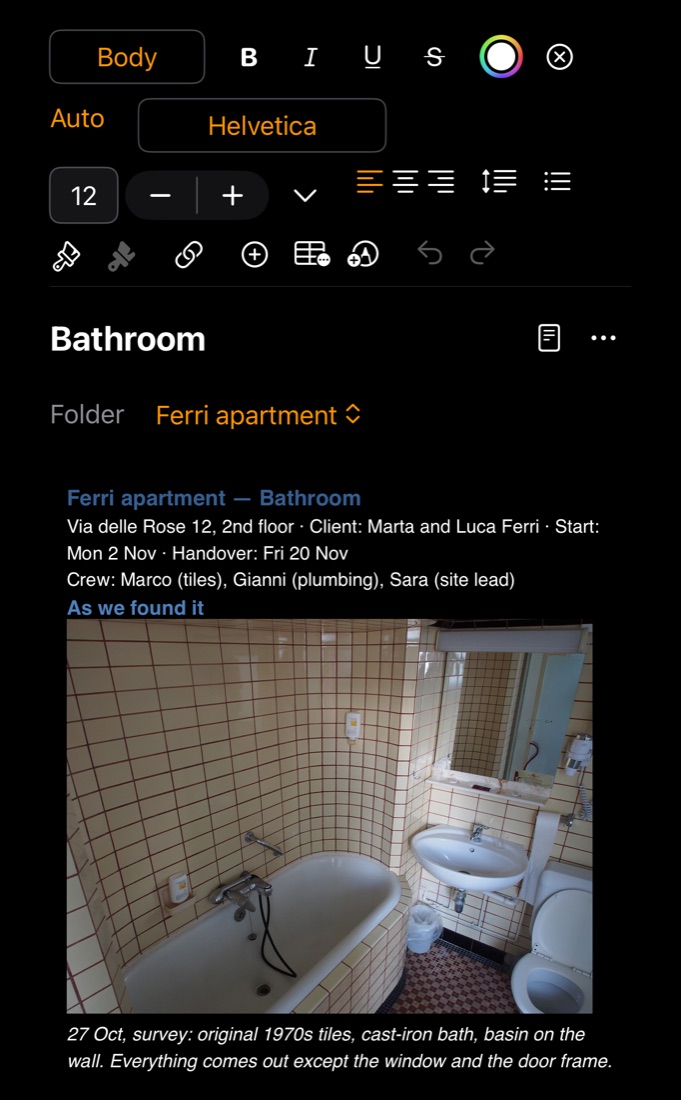
The tools work on the selected text. With nothing selected, they set how your next words will look. On a narrow screen, the tools wrap onto several rows.
From the left:
- Body, Title, Heading: the kind of line.
- Bold, italic, underline, strikethrough.
- Text colour. While the cursor is in the note's title, this sets the title's colour instead.
- ⓧ Clear Formatting: takes the formatting off the selected text. While the cursor is in the title, it takes the title's colour off.
- Auto: takes a colour off the selected text, so that it follows the page. See The Note as a Page.
- Font: the name of the font in use. Tap or click it to choose another.
- Size: type a size, use the small arrows to go up or down, or choose a common size from the menu beside them. Sizes run from 6 to 96.
- Left, centre, right, justify. Justify makes both edges of the lines straight. Table cells have only left, centre and right.
- Line Spacing: from 1.0 to 3.0, for the lines you have selected.
- List Style: None, Bullet, Numbered or Checkbox, and Horizontal Line.
- Copy Style and Paste Style (the two paintbrushes): carry the look of one piece of text to another.
- Link: see Links below.
- +: adds a photo, video, recording or document. See Photos, Drawings, Recordings and Video.
- The table button: see Tables.
- The drawing button (iPad and iPhone).
- Undo and Redo (iPad and iPhone). On a Mac: ⌘Z and ⇧⌘Z.
When you are inside a table, tools that don't work there are greyed out.
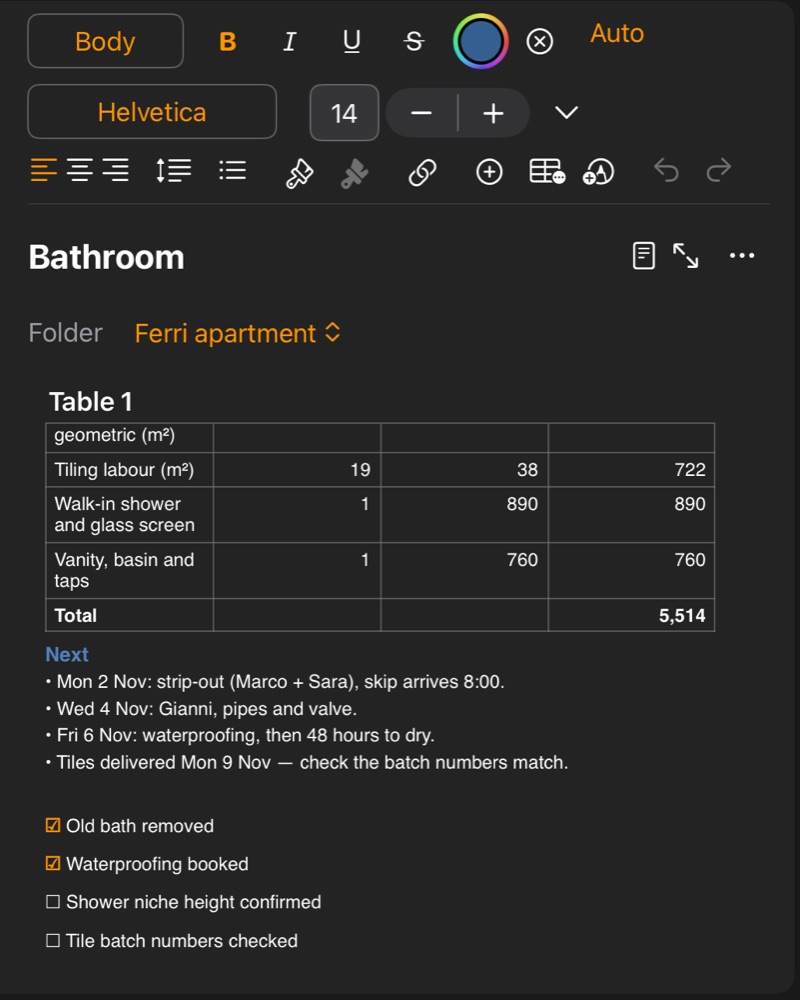
Tick-box lines
- Put the cursor on a line, or select several.
- Choose List Style ▸ Checkbox. On a Mac or an iPad with a keyboard: ⇧⌘L.
- Tap or click a box to tick it.
Settings ▸ Notes ▸ Tick Boxes chooses how ticked lines look: As They Are, or Greyed, where the text turns grey and the box stays orange. The choice is kept on each device.
Links
A link takes you from words in a note to a heading in the same note, or to another note.
- Select the words.
- Choose the Link button in the tool bar, then:
- Link to Heading… for a heading in this note.
- Link to Another Note… (⌘K with a keyboard) to pick a note, then The whole note or a place inside it.
The words turn blue and underlined. Tap or click them to follow the link. You can also put the cursor in the link and use the Open Link button that appears in the tool bar.
To take a link off, put the cursor in it and choose Link ▸ Remove Link. The words stay.
From a note to a task or event
Any words in a note can become a task or an event.
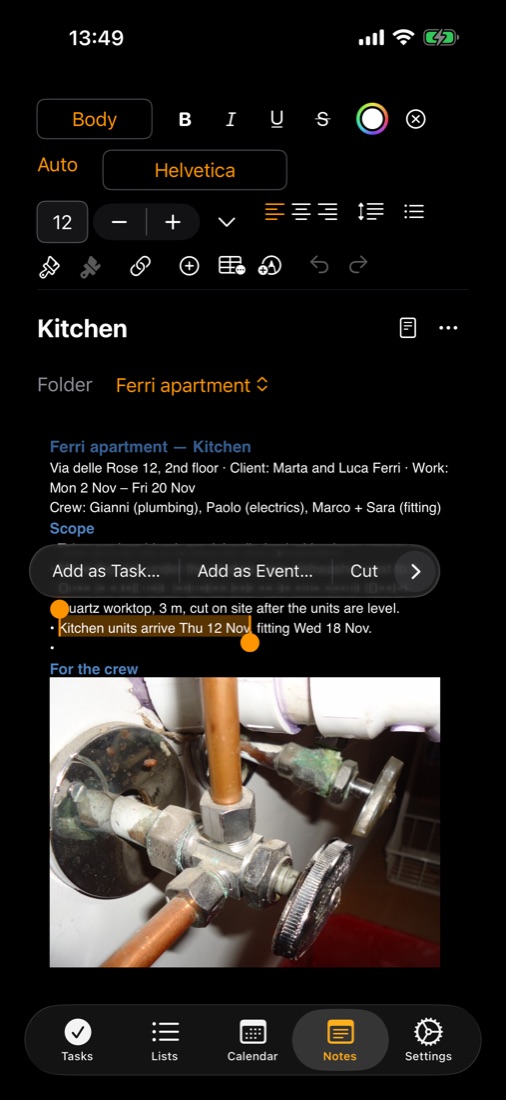
- Select the words.
- Choose Add as Task… or Add as Event…. They are in the menu that comes up for the selection (right-click on a Mac), and in the open note's •••.
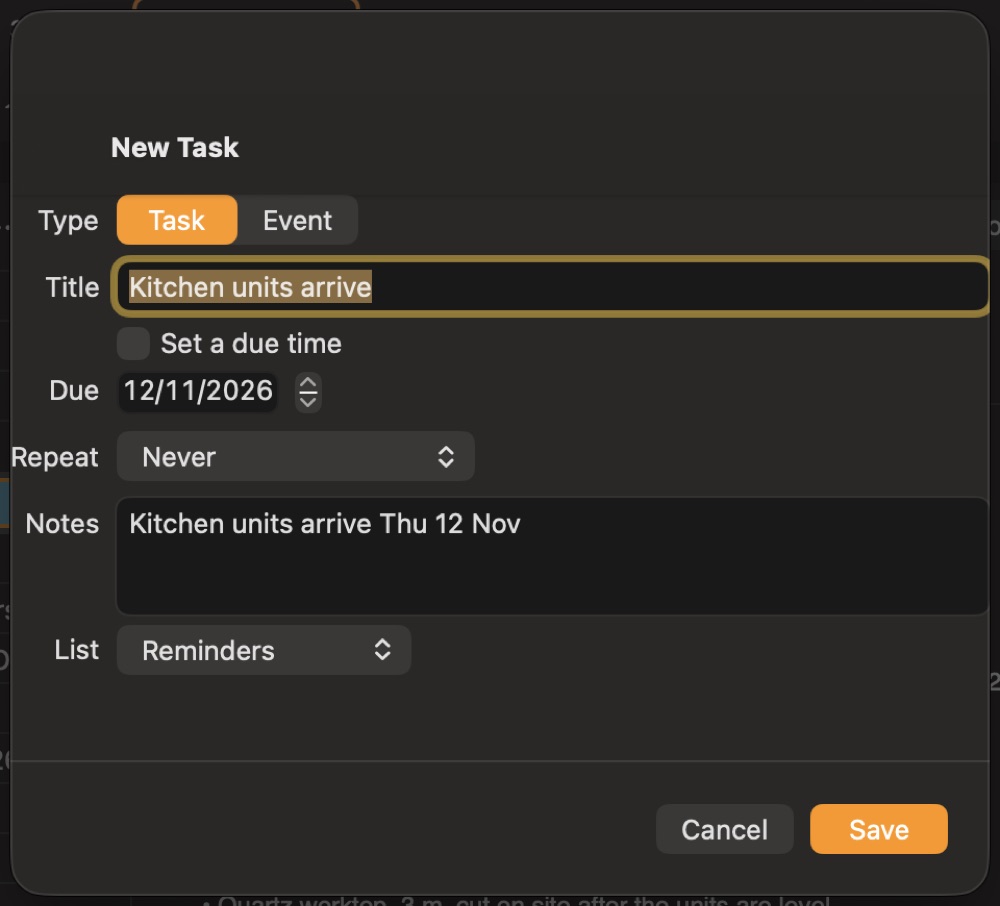
- The window opens filled in. The words become the title and the notes, and a day or time in them, such as Tuesday 3pm or tomorrow, becomes the date.
- Check it, then Save.
Dates are read by your device, and it can guess. 7:45 may come in as the evening, so look at the time before you save.
The task or event keeps a link to your words. Open the note › in Tasks takes you back to them. In Apple's Reminders and Calendar, the link is the last line of its notes.
A note's menu
Right-click a note in the list (Mac), or touch and hold it (iPad, iPhone):
- Open in New Window (Mac and iPad): see A note in its own window.
- Rename… and Colour…
- Duplicate: a copy with copy after its name.
- Save as Template…: keeps the note as a template, to start new notes from.
- Share: sends the note's plain text to another app.
- Export…: saves the note as a file. See Sharing, Export and Printing.
- Print…
- Protect Note…: see Protected Notes and Lists.
- Version History…: see Getting things back.
- Delete.
The open note's ••• has the same menu, plus Add as Task…, Add as Event… and the page: Page Size, Orientation, Page Colour and Show Rulers. So has the ••• of a note in its own window.
A folder's menu
New Note, New Note from Template…, New Subfolder, New Time Note, Duplicate, Share, Export…, Rename…, Move to Folder, Colour… and Delete.
The ••• at the top of Notes
It is for the list itself: View and Sort, the menu of a folder you have selected, then Manage Templates…, Recently Deleted… and Clean Up Unused Media….
The + beside it makes something new: New Note, New Note from Template…, New Folder, New Time Note, then Import Notes… and Import Document….
Export writes every note in the folder as a file of its own. Share sends the plain text of all its notes.
Templates
A template is a ready-made note or table to use again and again: a form, an invoice, a weekly plan. Using one always makes a copy; the template itself stays as it is.
To make one
- A note's menu ▸ Save as Template…: the whole note, with its text, tables and photos. On the Mac also File ▸ Save as Template….
- A table's menu ▸ Save Table as Template…: only that table.
To use one
- New Note from Template…, in the + or in a folder's menu: a new note made from it.
- ⊕ ▸ Insert Template…: it goes into the open note, at the cursor.
On the Mac both are in the menu bar too: File ▸ New Note from Template… and Format ▸ Insert Template….
To change them: the ••• at the top of Notes ▸ Manage Templates… (on the Mac also File ▸ Manage Templates…): Rename…, Edit, Duplicate or Delete…. Edit opens the template as a note with a bar on top: make your changes, then choose Save Template, or Cancel.
A template made from a protected note is not protected. If a table's formulas use other tables, they work only in a note that has those tables too.
Colours
Colour… in a note's or folder's menu gives it a colour in the list.
- Choose Colour….
- Pick a colour.
- Choose how it shows: Icon and Name, Full Colours or Muted.
- Choose Use This Colour. None takes the colour off.
The colour of a note's title is separate. Click or tap the title, then use the colour button in the tool bar.
View and Sort
- Mac and iPad: in the ••• at the top of Notes, View shows Folders or All Notes (every note in one list), and Sort chooses the order.
- iPhone: at the top of Notes, the eye chooses the view and the two arrows choose the order.
The order can be by name, by date created or by date modified, either way round. Settings ▸ Notes ▸ Sort Notes By has the same choice.
A note in its own window
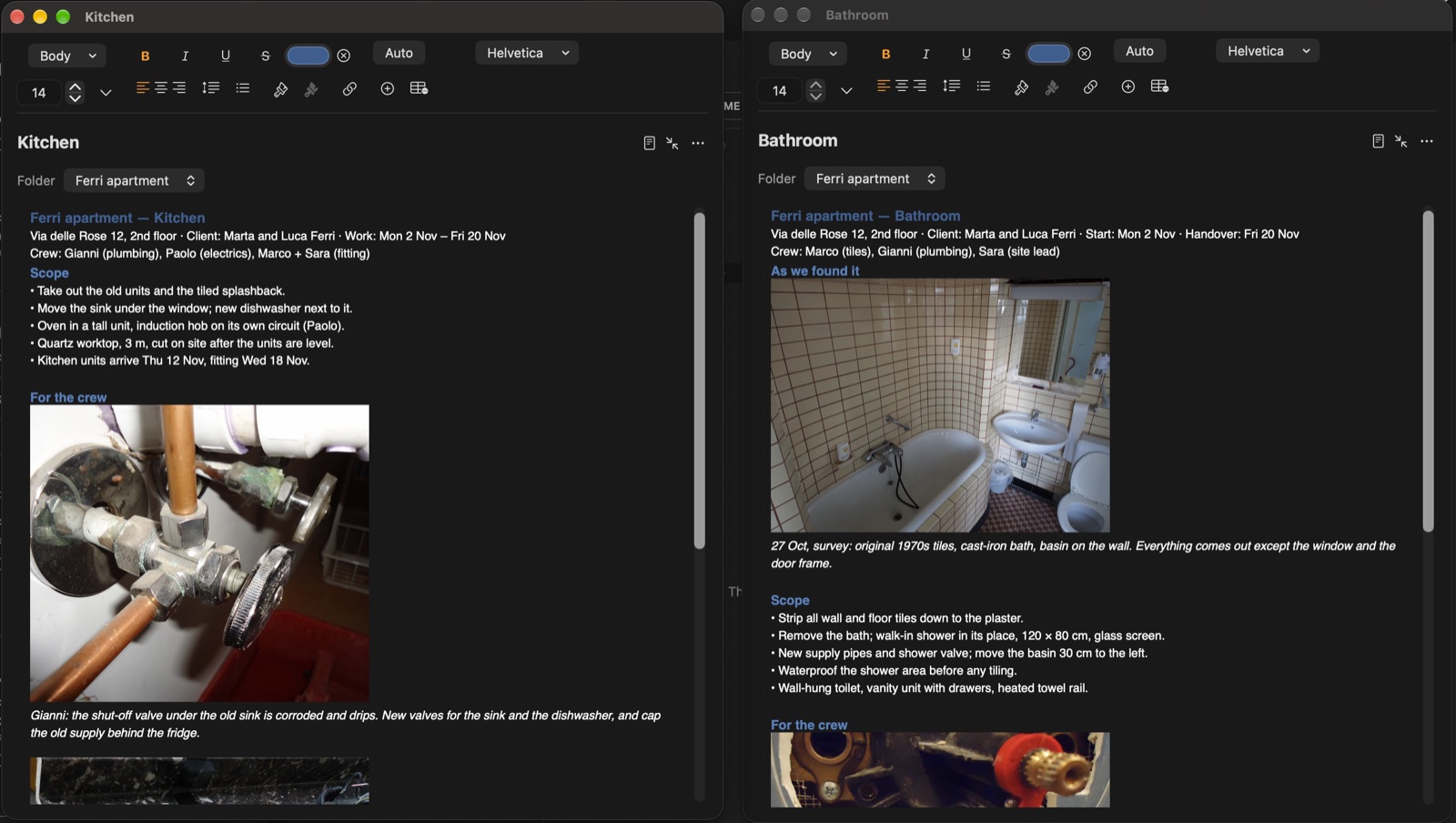
Mac and iPad. A note can have a window of its own: resize it, make it full screen, or keep several side by side.
- Choose Open in New Window in the note's menu, or the two arrows at the top of the note. With a keyboard: ⌘O on a Mac, ⇧⌘O on an iPad.
- While the note is in its window, Notes says so and offers Show Window.
- To put it back, use the two arrows at the top of the window.
The window's ••• has the same commands as in Notes, including the page.
Deleting
- Choose Delete in the note's or folder's menu. With a keyboard: ⌘⌫.
- Ambitus asks Delete "name"?. Choose Delete to confirm.
Undo brings it straight back: ⌘Z, or the Undo bar on an iPad or iPhone. After that, it's in Recently Deleted for 30 days.
Settings ▸ General ▸ Deleting ▸ Ask Before Deleting switches the question off.
Several at once
Notes and folders can be deleted together, in any mix.
- Mac: ⌘-click to add or take out one, ⇧-click to choose everything in between. The note pane says how many are chosen. Press ⌘⌫, or right-click one of them and choose Delete 5 Items.
- iPad: in the ••• at the top of Notes, choose Select. iPhone: tap the tick-circle button at the top of Notes. Every row gets a circle: tap the ones to delete, then Delete. Cancel leaves Select.
Ambitus asks once, Delete 5 items?, and they all go to Recently Deleted. A note inside a chosen folder goes with its folder. One Undo brings them all back.
Getting things back
Version History
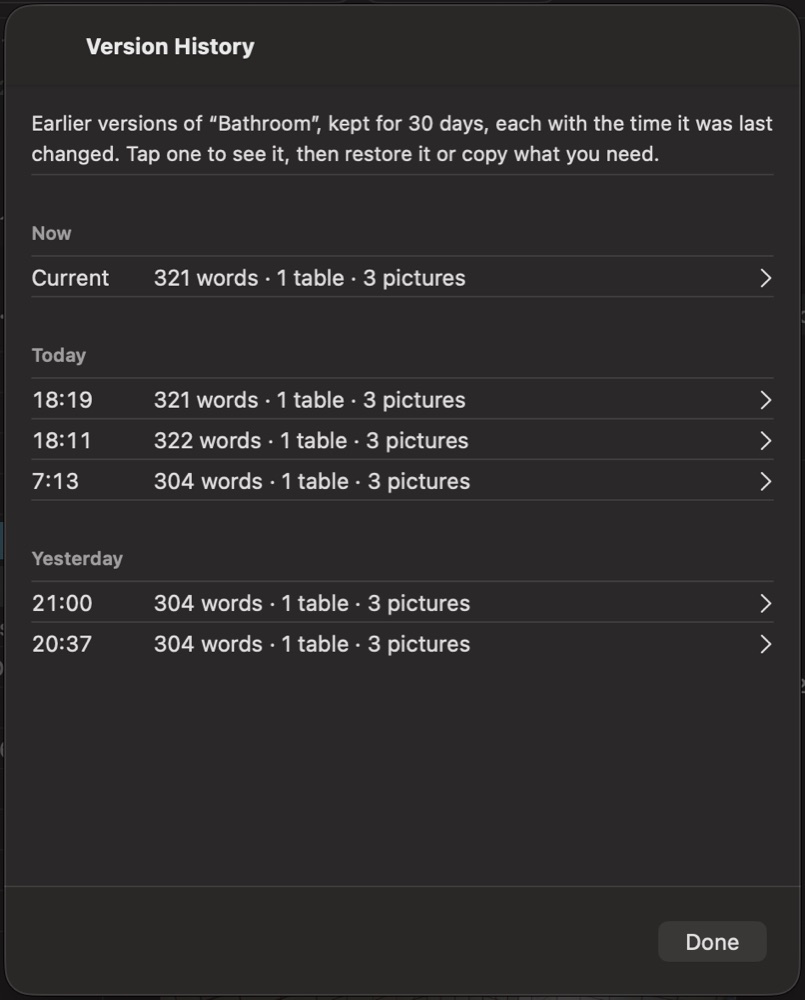
Ambitus keeps earlier versions of each note for 30 days: one when you start changing it, at most one every 10 minutes while you work, and one just before a change arrives from another device.
- Choose Version History… in the note's menu.
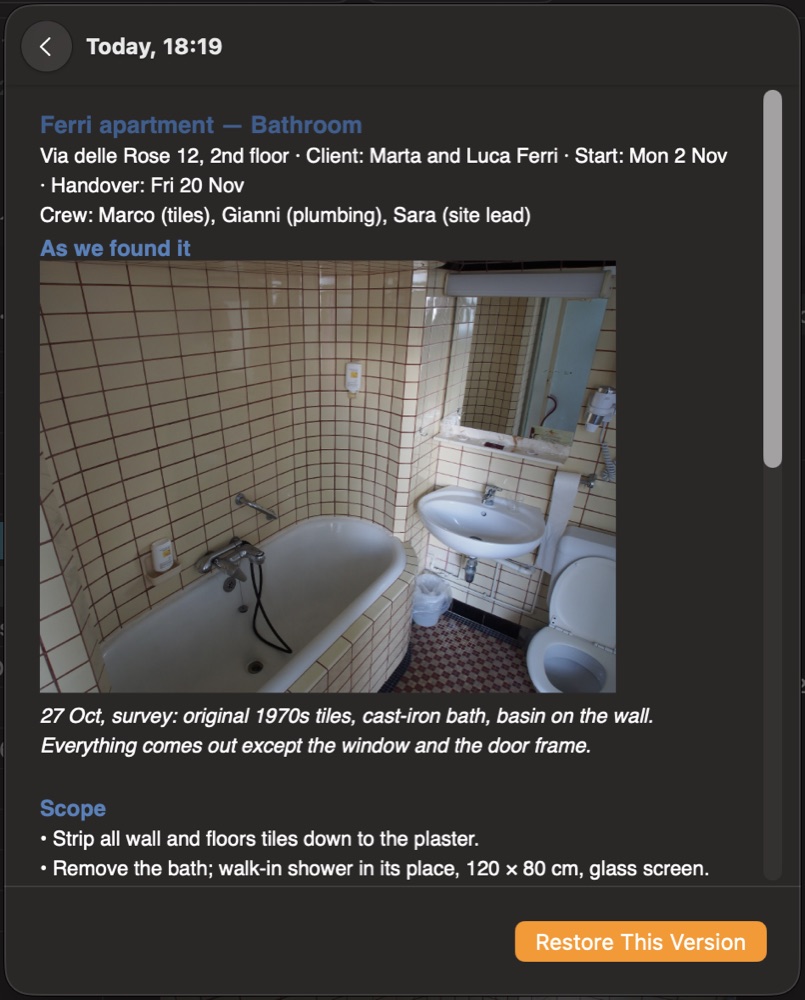
- Choose a version to see it. You can copy from it.
- Restore This Version puts it back. Done leaves things as they are.
Recently Deleted
A deleted note or folder stays here for 30 days.
- Choose Recently Deleted… in the ••• at the top of Notes.
- Choose Restore to put it back.
Delete Now removes it for good, with its earlier versions. If its photos, videos, recordings and drawings aren't used anywhere else, Ambitus offers to remove those too: to the Trash on a Mac, to Recently Deleted in the Files app on an iPad or iPhone.
Two devices, one note
If another device has saved a newer version of the note you are typing in, Ambitus doesn't overwrite it. Newer Version on Another Device comes up:
- Use the Newer Version takes the other device's.
- Keep My Version keeps what you see.
Bringing your notes from another app
Import Notes… in the + menu of the Notes list brings in one file, several files or a whole folder. Each file becomes a note named after the file, and keeps the file's date. A folder comes in as a new folder, with its subfolders. At the end, a report tells you what came in and anything that didn't.
| Format | What comes across | What doesn't |
|---|---|---|
| Word | Text, formatting, tables, pictures | Fonts Ambitus doesn't have |
| RTF, RTFD | Text and formatting; pictures from an RTFD | Pictures from a plain RTF; on iPhone and iPad, tables come in as lines of text |
| Markdown | Text, headings, bold, italic, lists, tick boxes, links, tables, pictures | Colours, fonts, sizes; a table's first row comes in bold |
| HTML | Text, headings, lists, links, tables, pictures | A website's design |
| Each page, as a picture | Editable text; only the first 20 pages of a long PDF | |
| Text | The words | All formatting |
As of 30 Oct 2026. Other apps can change their export at any time.
From Apple Notes (macOS 26): click a note in the list, press ⌘A to select them all, then File ▸ Export As ▸ Markdown. Do this one folder at a time. The export is always called "Archive", so rename the folder in Ambitus afterwards.
Pictures on the web are kept as links. Unzip a .zip export before importing it.
A new note's font
Settings ▸ Notes ▸ New Notes sets the Font and Text Size a new note starts with, from 9 to 36 pt. It starts as Helvetica Neue. Notes you already have keep their look.
On the iPad with a keyboard
While a keyboard is attached, Apple's Writing Tools (Proofread, Rewrite) are switched off in notes, so that their bar doesn't cover the bottom of the note. With the on-screen keyboard they work as usual.
On Apple Watch
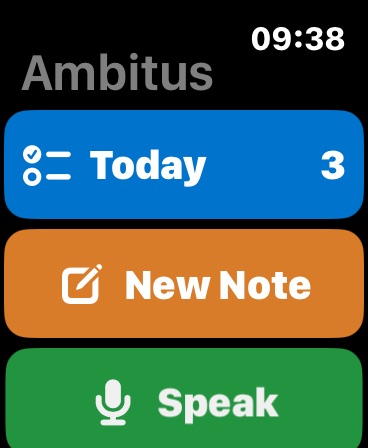
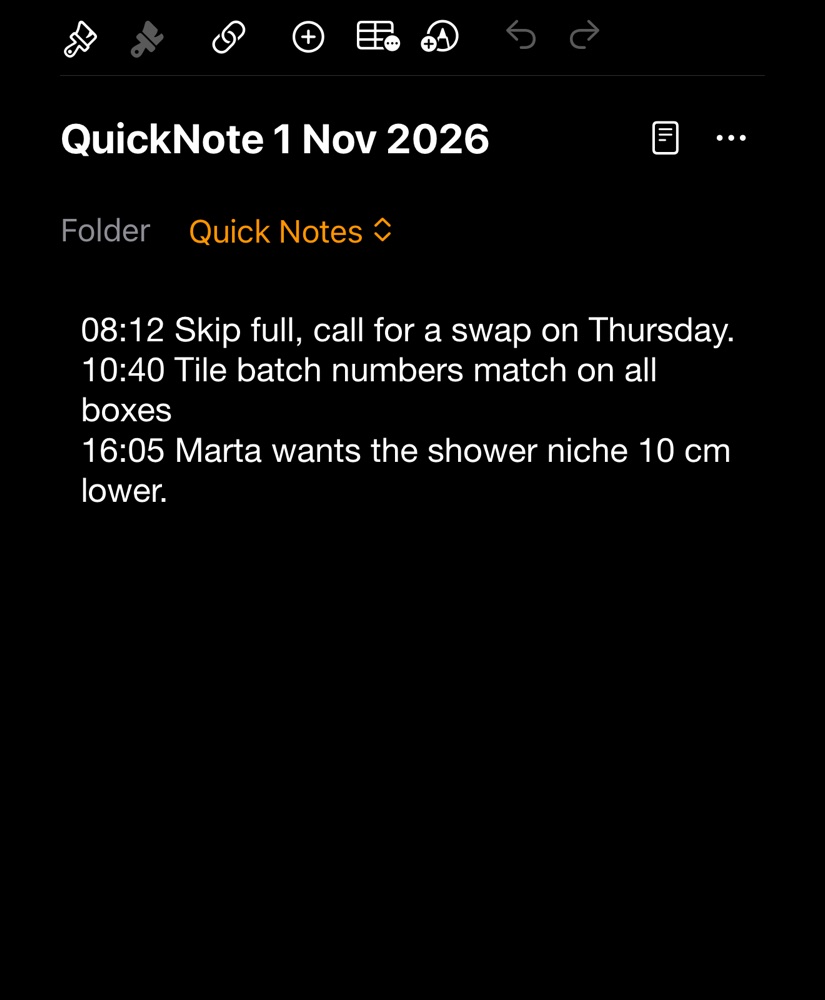
Notes can't be read on the watch, but you can add to them. New Note, Speak and Record on the watch all go into today's quick note on your iPhone: a note named QuickNote with the date, in the folder Quick Notes. Siri adds to the same note. See Siri and Apple Watch.
Keys (Mac, and iPad with a keyboard)
| Key | Does |
|---|---|
| ⌘N | New note |
| ⇧⌘N | New folder |
| ⌘O (Mac), ⇧⌘O (iPad) | Open the note in its own window |
| ⇧⌘D | Duplicate |
| ⇧⌘E | Export |
| ⌘⌫ | Delete |
| ⌘B | Bold |
| ⌘I | Italic |
| ⌘U | Underline |
| ⇧⌘X | Strikethrough |
| ⌘K | Link to another note (select text first) |
| ⇧⌘L | Tick-box line |
| ⌘+ | Bigger |
| ⌘− | Smaller |
| ⌘P | Print (Mac) |
| ⌘Z | Undo |
| ⇧⌘Z | Redo |
Contents · ← Calendar · Photos, Drawings, Recordings and Video →