 Ambitus
The Time Note
A Time Note is one note with a page for every day: a diary, a work log, a journal. In the Notes list it is a single row with its own icon, and its pages aren't listed one by one.
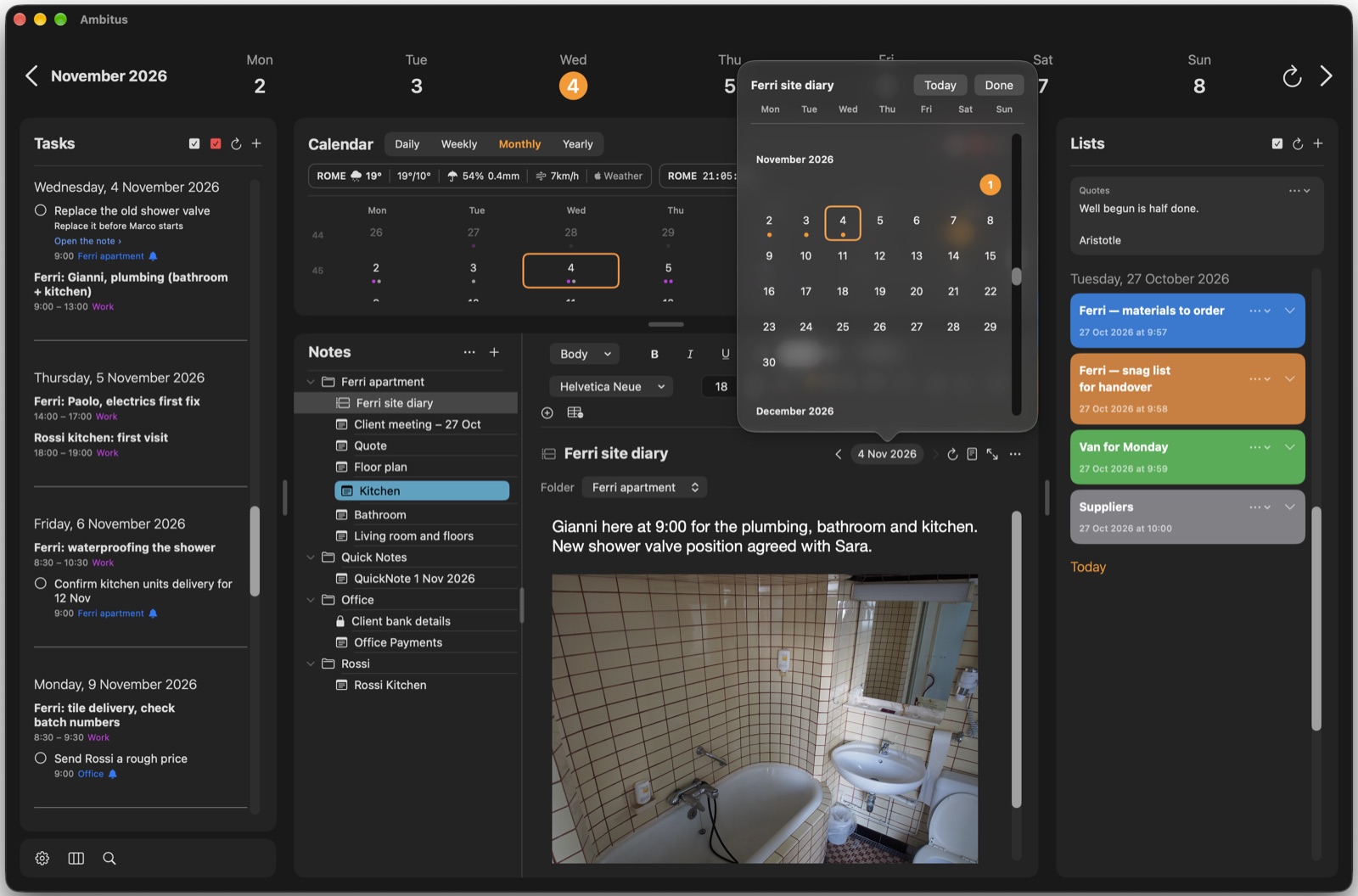
Making one
- Tap or click + at the top of Notes.
- Choose New Time Note.
- Give it a name.
You can also make one inside a folder, from the folder's menu.
Writing a day
Select the Time Note and it opens on the selected day. A day with nothing written says Nothing written on this day. Tap or click there to make the page, then type as in any note.
Everything a note can hold, a page can hold: formatting, tick-box lines, photos, tables and recordings.
Moving between days
- ‹ and › beside the date go to the entry before and the entry after. They skip days with nothing written.
- The round arrow goes back to today. The date is orange when it is today.
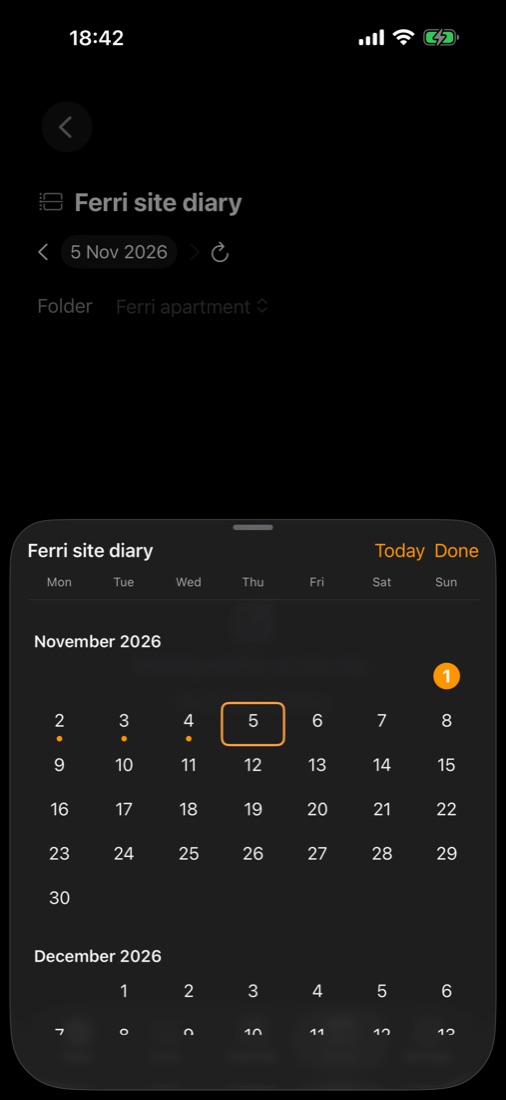
- The date itself opens a month calendar. A dot marks every day with an entry. Tap or click any day to open it, written or not.
The day is the same as everywhere else in Ambitus. Picking a day in the week row or the Calendar turns the page, and turning the page moves Tasks, Lists and the Calendar.
Reading everything at once
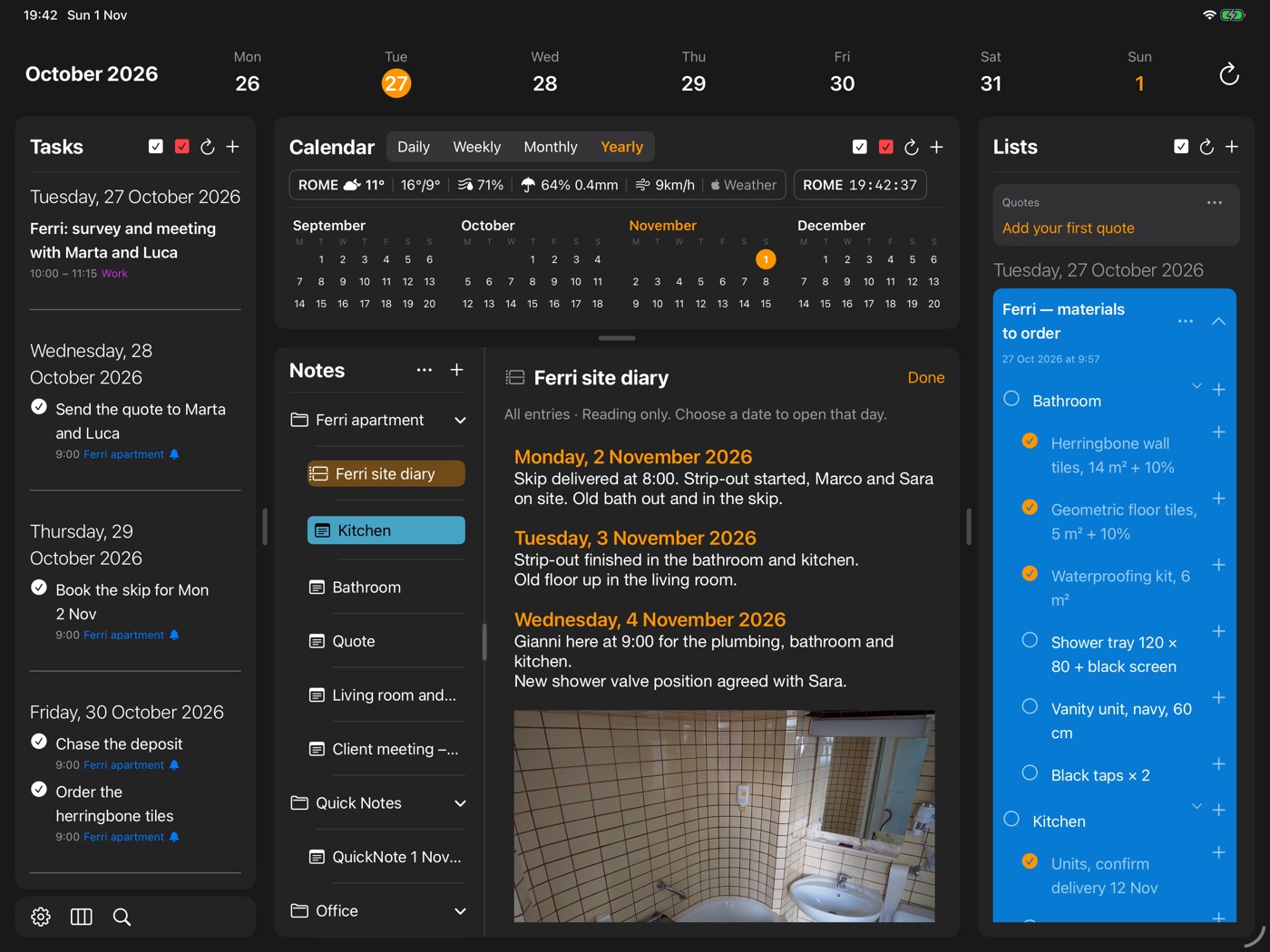
All Entries (Reading Only) shows every day in one long page. It is in the Time Note's menu in the list, and in an open day's •••.
Nothing can be changed there. Each date is a link that opens that day. Done goes back.
Exporting and printing
From an open day's •••:
- Export ▸ This Entry… or All Entries…, which makes one file with every day in it, named after the Time Note.
- Print ▸ This Entry… or All Entries…
From the Time Note's menu in the list:
- Print ▸ All Entries…
- Export, which writes each day as a file of its own.
Its page
A Time Note has one page for all its days. Whether it is shown as a page, its size and orientation, and its page colour are the same for every day. See The Note as a Page.
In its own window (Mac and iPad)
Open in New Window shows the Time Note in a window of its own. Its ••• has Export, Print and the page, as in Notes.
Its name, colour and place
- The name at the top is a field like a note's title. Type to rename it, and use the tool bar's colour button to colour it.
- Folder shows where the Time Note is kept. Choose another folder there to move it, with all its days.
The Time Note's own menu in the list has Duplicate, Share, All Entries (Reading Only), Export, Print, Rename, Move to Folder, Colour and Delete.
Good to know
- Duplicate makes a second Time Note with every day in it. This suits a project that takes two directions, with the history in both. From then on the two go their own ways.
- To remove a day, open it and choose ••• ▸ Delete. The other days stay as they are.
- Nothing else can be put into a Time Note: no ordinary notes or folders.
- In the All Notes view, each day's page is listed as a note of its own.