 Ambitus
Lists
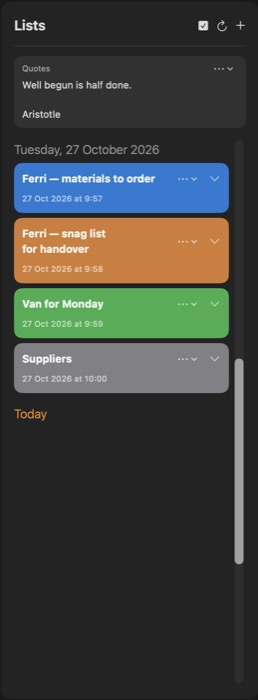
Lists is for anything you tick off that isn't a dated task: what to order, what to pack, what to check before handing over a job. Each list is a coloured card with a title and items you can tick.
The cards stand under the day they belong to, with Today always shown. Lists follow the day selected in the week row, so choosing a day in Tasks or the Calendar also moves Lists to that day.
Where to find it
- Mac and iPad: Lists is the right-hand column of the window.
- iPhone: tap Lists in the bar at the bottom of the screen.
Lists are ordinary files in a folder you choose. If Ambitus asks you to choose a folder, tap or click Set Up Lists Folder. See Files and Storage.
Making a list
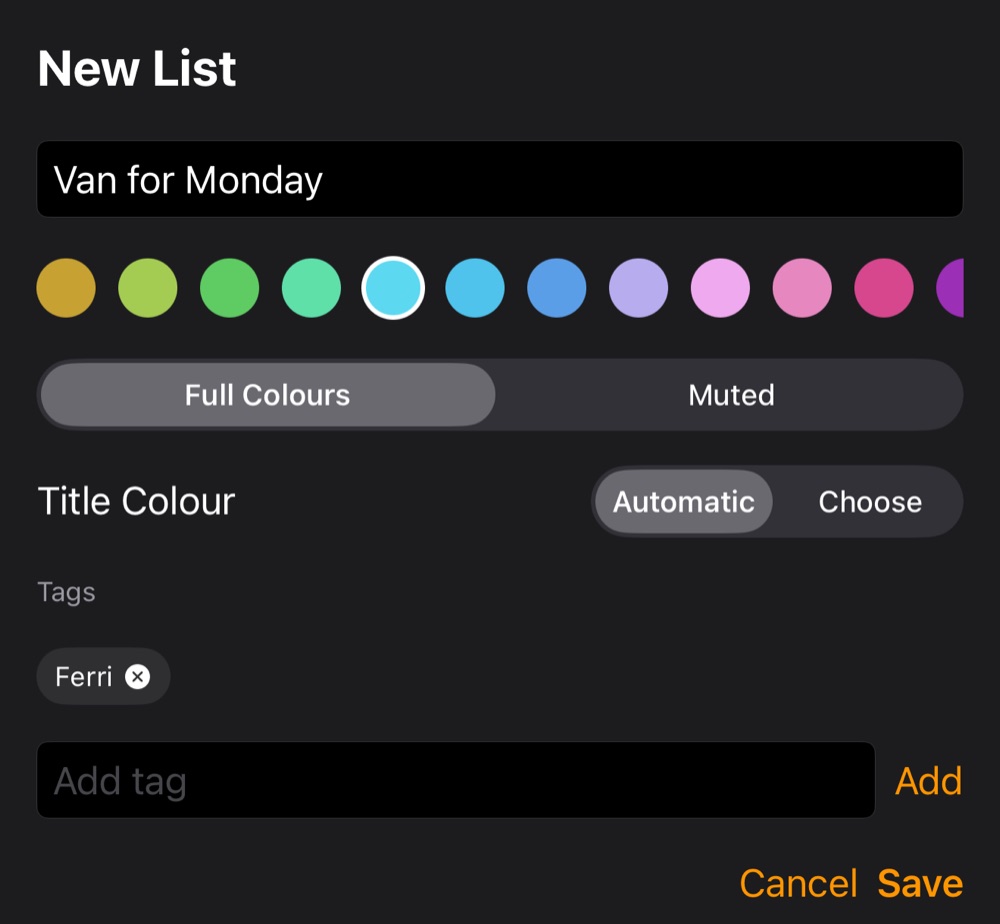
- Tap or click + at the top of Lists. On a Mac or an iPad with a keyboard: ⌘L.
- Give it a title and a colour and, if you like, tags.
- Save it.
Settings ▸ Lists ▸ New List Look sets how new lists start.
Items
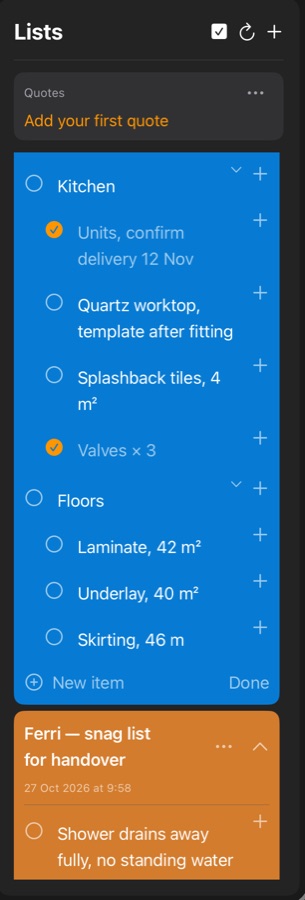
Type in the empty line of a card and press Return to add an item.
- To tick an item: tap or click its circle.
- To change an item: tap or click its text.
- To add a sub-item: tap or click the small + on the item.
- To fold sub-items away: use the small arrow on an item that has them.
An item's menu
Right-click an item on a Mac, or touch and hold it on an iPhone or iPad:
- Item Colour
- Add as Task… and Add as Event…
- Cut, Copy and Paste
- Delete Item
From an item to a task or event
Add as Task… or Add as Event… makes a task or event from the item. The item becomes the title, its sub-items go into the notes, and a day or time in it becomes the date.
Open the list › in Tasks shows the item again. So does the link at the end of its notes in Apple's Reminders and Calendar.
A list's own menu
The ••• on a card has:
| Item | Does |
|---|---|
| Show Completed | Shows or hides this list's ticked items |
| Repeat List | Makes the list come back. See Repeating lists |
| Duplicate | Makes a copy |
| Share | Sends the list as text to another app |
| Export… | Share as Text or Share as PDF |
| Protect List… | Locks it with your password. See Protected Notes and Lists |
| Version History… | Shows its earlier versions |
| Recently Deleted… | Shows deleted lists |
| Rename | Changes the title |
| Edit Colour and Tags | Changes the colour, style and tags |
| Reorder Items | Moves items around |
| Delete | Deletes the list, after asking first |
After you tap or click into an item, the ••• also offers Item Colour, Add as Task… and Add as Event… for that item.
The arrow beside the ••• folds the card or opens it. Tap or click the title to rename the list.
Reordering items
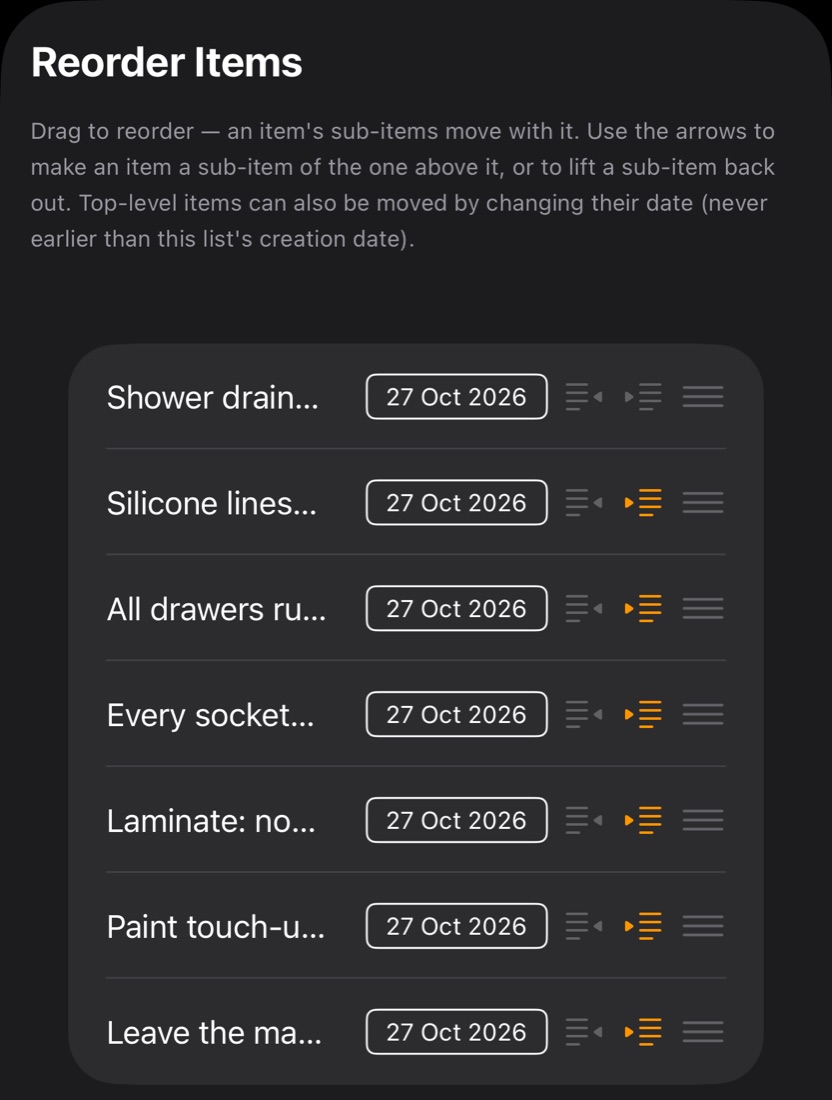
Reorder Items shows the whole list.
- Drag an item to another place.
- Use the two arrows to make an item a sub-item of the one above, or to lift it out one level.
Repeating lists
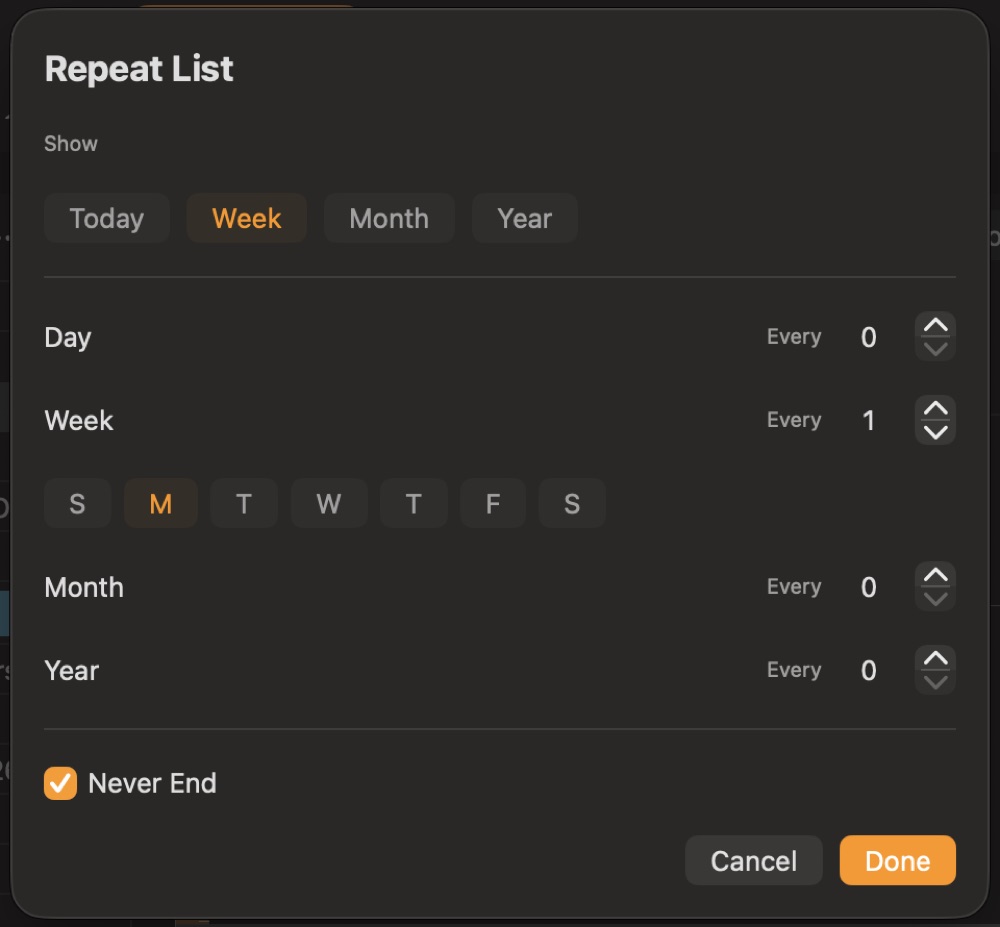
Repeat List makes a list come back every so many days, weeks, months or years. For weeks, you choose the weekdays.
- Set a date for it to end, or turn on Never End.
- Show, at the top of that window, chooses how much of the list's history the card shows: Today, Week, Month or Year.
A repeating list keeps its items under the dates they belong to, so you can see what was done on which day.
Overdue and Previous Days
The days before today wait at the top of the card, in two parts. Both cover the period chosen in Show, and both start closed.
- Overdue · 2, in a red pill: the past days that still have something unticked, and how many items. It shows even when the card is closed. Tap or click it to open the card with Overdue open. Once everything on a day is ticked, the day moves to Previous Days.
- Previous Days: the past days where everything is ticked.
To keep one past day in view, open Previous Days and choose Show on it. The day stays beside today, without the days in between. Hide sends it back.
Opening and closing days
Tap or click a day's date to open or close it. The double arrow beside it opens or closes that day and every day below it.
Tags
Tags are words you give a list in Edit Colour and Tags. Search finds a list by its tags. See Search.
The buttons at the top
| Button | Does | Keys |
|---|---|---|
| Tick box | Shows or hides completed items | |
| Round arrow | Goes back to today | ⌘D |
| + | Makes a new list | ⌘L |
On the iPhone there is also a magnifying glass, which searches your tasks, notes and lists.
The Quotes box
Above the lists, a box shows one of your quotes and changes by itself. Its menu has Next Quote, Edit Quotes and Hide Quotes, how often it changes, and whether it goes in order or shuffled.
The quotes are kept in a Quotes folder inside your Lists folder. Settings ▸ Storage can point to another one. Settings ▸ Lists can show the box again after you hide it.
Two devices, one list
If another device has saved a newer version of a list you are changing, Ambitus asks: Keep My Version or Use the Newer Version.
Getting a list back
- Version History… in a list's ••• menu shows its earlier versions, kept for 30 days.
- A deleted list goes to Recently Deleted, also in the ••• menu, and stays there for 30 days.